I have a simple red, green, white pattern saved in DIY Favorites that works when I select it for string lights on my deck and I have rules created to turn the lights on in the evening and off in the morning. But the color selection doesn’t stay in place. The next evening when the lights turn on they are all green. How can I select a DIY favorite as part of the rule for turning on the lights?
Dear user,
Thank you for your inquiry.
Unfortunately we only support the selection of monochromatic light effects in the schedule function curently.
Our technical department has received feedback from users and is working on improving this feature.
Please kindly note the lights will remember the last pattern and it will show the same effect the next time be turned on.
If you want it to show a specific pattern at the scheduled time, please select this pattern and turn off the lights before the schedule timing.
Here are the steps:
1. On the Home interface, click on "Rule," then tap the "+" icon in the top right corner.
2. Click "Schedule".
3. Enter a name for the schedule.
4. Choose the start time.
5. Set the desired repeat options.
6. Click "+" to select a device.
7. Select an action. If you select "turn on", it will turn on with the last used lighting effect/pattern.
8. Click "Save", the schedule is saved now.
Please feel free to contact us if there are further questions.
Best regards,Lepro Customer Service Team
Unfortunately, it’s not working that way. I select the color pattern from DIY favorites and then shut the lights off. When they turn on again the next day via the rule, they turn on all green and then I have to again go to DIY favorites and select the desired pattern. That happens day after day.
Dear user,
We sincerely apologize for any inconvenience this issue may have caused.
We have sent you a direct message to provide further assistance.
Best regards,
Lepro Customer Service Team
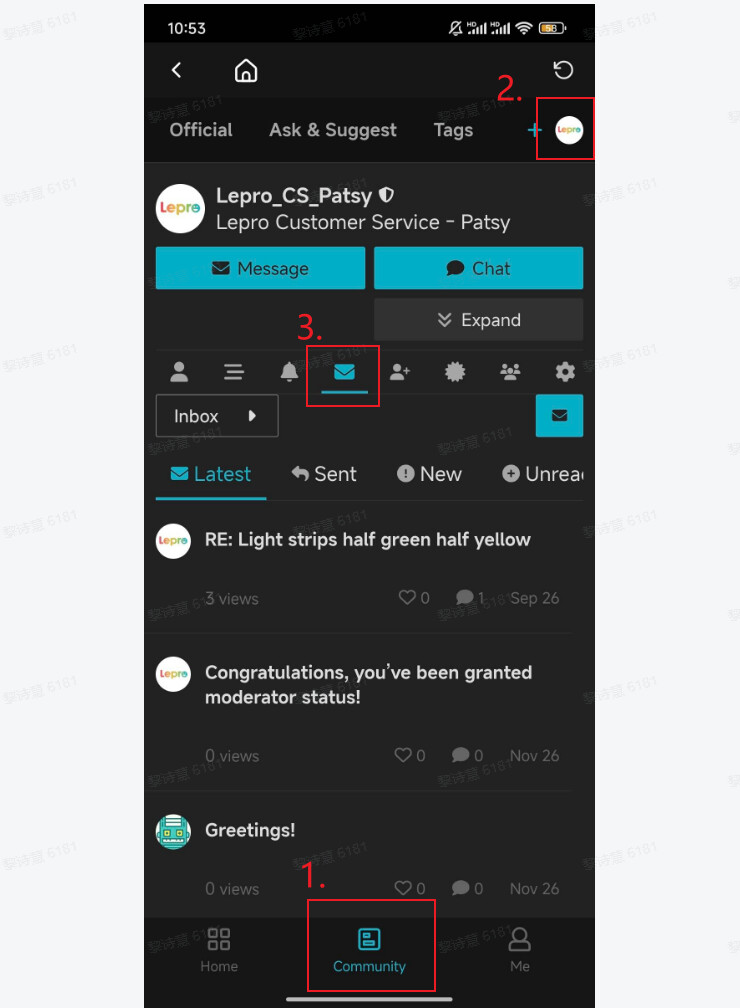
I appreciate the timely response and I remember seeing the direct message among the notifications on my phone, but now I can’t find it. How are direct messages sent? SMS? email? Somewhere in the app - I’ve looked but don’t see it.
Thanks!